

Imagine cruising down the highway, your favorite tunes blasting, and suddenly—silence. Your iPhone refuses to connect to Apple CarPlay, leaving you stranded in a digital desert. It’s like showing up to a party and finding out you’re the only one without a dance partner. Frustrating, right?
Common Issues With iPhone and Apple CarPlay
Resolving connection issues with Apple CarPlay often involves identifying the underlying problems. Many users encounter common issues that prevent seamless integration with their devices.
Software Compatibility
Software versions play a crucial role in enabling Apple CarPlay. Ensure that the iPhone runs iOS 13 or later. Verify that the vehicle’s infotainment system is updated to its latest software version. Compatibility includes checking for vehicle manufacturer updates and settings. If compatibility standards aren’t met, CarPlay won’t connect properly. Updating both the phone and vehicle software usually resolves this issue. Regular updates help maintain performance and security.
USB Connection Problems
USB connection problems frequently hinder CarPlay functionality. Use a quality cable that adheres to Apple standards, as low-quality cables can lead to connectivity issues. Ensure the USB port in the vehicle is clean and free from debris. Connecting to the correct USB port, usually labeled for CarPlay, matters significantly. If the connection is unstable, try a different USB port or restart the vehicle’s infotainment system. Addressing these USB-related factors enhances the chance of a successful connection.
Troubleshooting Steps
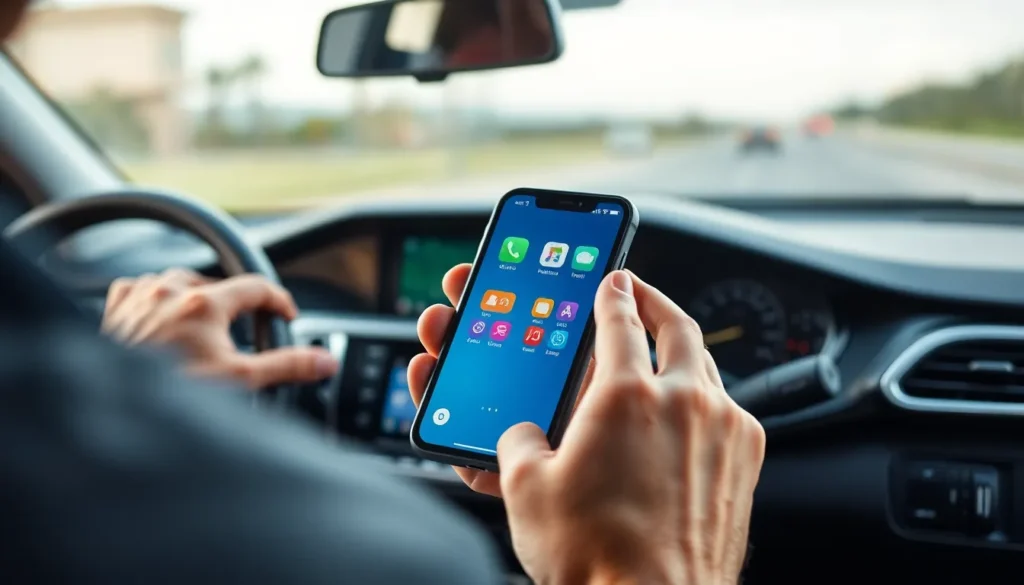
Connectivity issues with Apple CarPlay can be resolved through a few easy steps. Implementing these tips can restore the connection quickly.
Check Your iPhone Settings
Verify that the “CarPlay” setting is enabled on the iPhone. Navigate to Settings and select General, then CarPlay to check for available cars. Ensure that Bluetooth and Wi-Fi are turned on, as these features support connectivity. Restarting the iPhone can also refresh settings and resolve minor glitches. Additionally, important updates may improve performance. Check for iOS updates by going to Settings, selecting General, and then Software Update. Keeping software current ensures compatibility.
Inspect Your Vehicle’s Compatibility
Review the vehicle’s compatibility with Apple CarPlay to avoid connection issues. Not all vehicles support the feature. Refer to the user manual or manufacturer’s website for a list of compatible models. Confirm the infotainment system is updated, as software updates can enhance performance. If issues persist, the vehicle may need a reset. Restarting the infotainment system can sometimes refresh the connection. Check USB ports for debris or damage; clean ports can improve the connection.
Additional Solutions
If connectivity issues with Apple CarPlay persist, users can explore additional solutions to enhance their experience.
Restart Your Devices
Restarting both the iPhone and the vehicle’s infotainment system often resolves temporary glitches. Reboot the iPhone by powering it off and back on. This action refreshes network connections and clears background processes that may hinder CarPlay functionality. After the iPhone restarts, try reconnecting to CarPlay. Users should also consider power cycling the vehicle’s infotainment system. Turn off the engine completely, wait for a few moments, and restart it. This reset can refresh the system and might establish a stronger connection with the iPhone.
Update Software
Keeping software current is crucial for optimal performance. Navigate to the iPhone settings and check for any available updates for iOS. Ensuring the iPhone is on the latest iOS version eliminates compatibility issues with CarPlay. Likewise, check the vehicle’s infotainment system for software updates. Many manufacturers release updates that improve connectivity and add features. Access the settings menu in the infotainment system or refer to the user manual to find instructions on updating. Regularly updating both devices enhances functionality and can resolve persistent connectivity problems.
When to Seek Professional Help
Experiencing ongoing issues with Apple CarPlay may signal the need for professional assistance. Identifying the right resources can help resolve persistent connectivity problems.
Consult Apple Support
Apple Support offers direct assistance for users facing issues with Apple CarPlay. Engaging with their knowledgeable representatives can provide tailored solutions based on specific device problems. Users can contact Apple Support through the Apple Support app, website, or by phone. Documentation of the problem can enhance the experience, ensuring a resolution is reached faster. Seeking support becomes crucial when troubleshooting steps don’t yield results, especially when software or hardware malfunctions occur.
Visit a Certified Technician
Visiting a certified technician can provide a more hands-on approach to fixing Apple CarPlay issues. These professionals have the expertise to diagnose and repair complex problems that might not be resolvable through basic troubleshooting. Most technicians have access to specialized tools and equipment to test vehicle infotainment systems and the iPhone’s hardware. Choosing a certified technician ensures both vehicle and iPhone receive proper care. Trusting an expert can provide peace of mind, allowing for a smoother driving experience with Apple CarPlay.
Experiencing connectivity issues with Apple CarPlay can be frustrating but there are effective solutions available. By ensuring the iPhone and vehicle’s software are up to date users can often resolve many common problems. High-quality cables and clean USB ports play a crucial role in maintaining a stable connection.
If issues persist despite troubleshooting efforts seeking professional help may be the best course of action. Consulting Apple Support or a certified technician can provide targeted solutions for more complex problems. With the right approach users can enjoy a seamless Apple CarPlay experience that enhances their driving enjoyment.